


Internet Troubleshooting
We encourage you to use the Beanfield WiFi app to set up your Nokia WiFi Beacon. Upon login, you’ll be instructed on how to get set up.
If you aren’t able to download the app, please follow the instructions below:
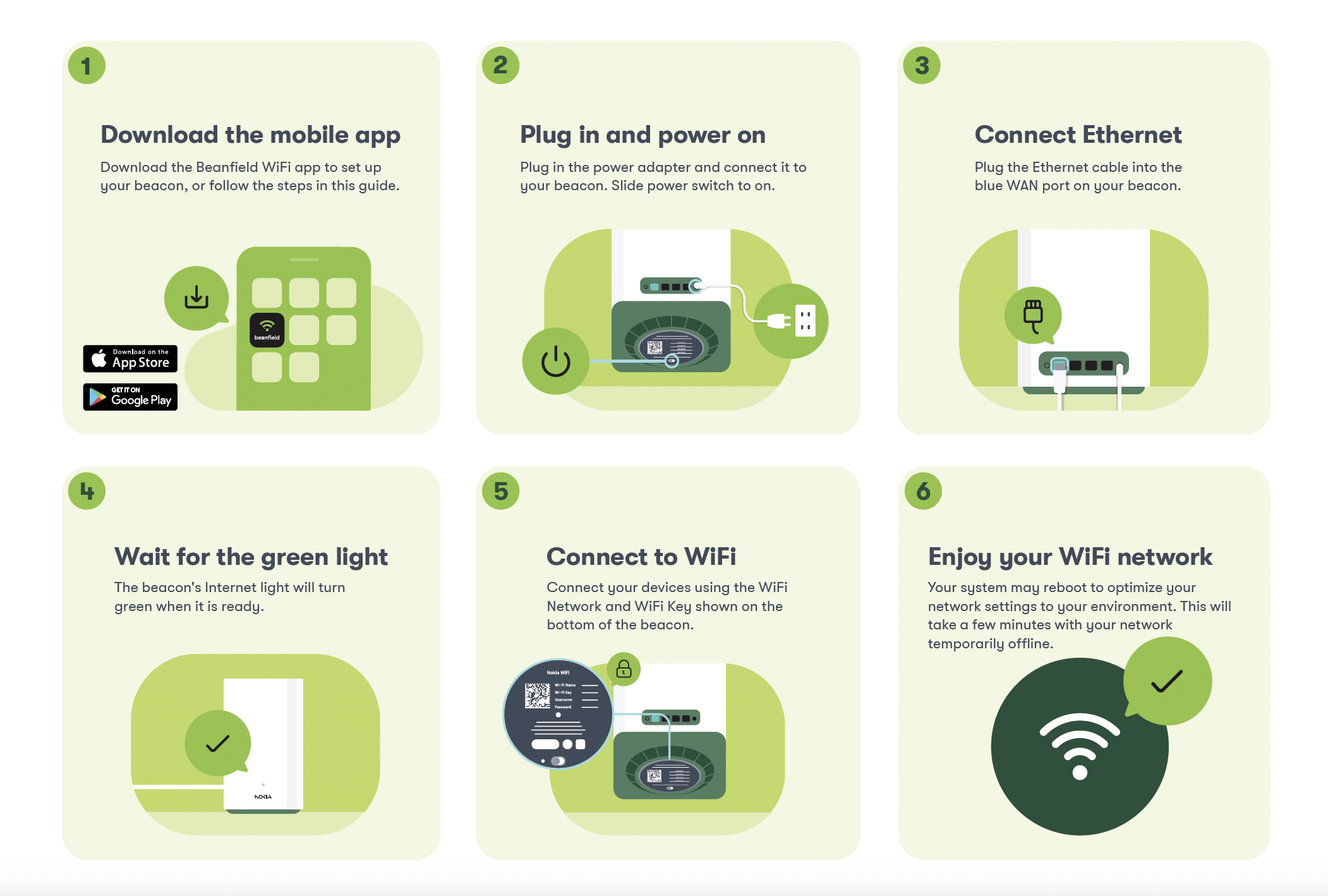
If you've just received a new AirTies WiFi Access Point and you're looking to set it up or want to move your current device to a new location, you can do so by following these steps:
Start by unboxing and removing any plastic wrappings from your device and connect the Cat-5 ethernet cable to both the AirTies and the wall port, as shown in the picture below. Then, plug in the power adaptor.
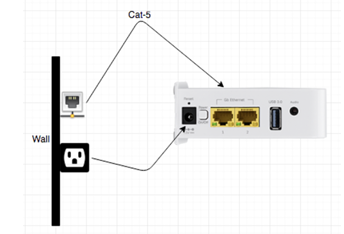
Wait patiently for both the 5GHz and 2.4 GHz lights to turn solid green (this should take between 3 to 5 minutes).
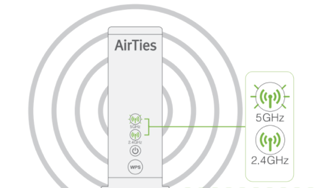
Once the lights are green, you're ready to connect to your WiFi network using the default credentials found at the bottom of the device. It's that easy!
There are a few factors that could be causing a change to your Internet speed and performance.
Consider whether you are experiencing slower speeds over WiFi or a hardwired connection. Environmental factors can affect wireless speeds, which may not be as fast as those over a hardwired connection. If you are using a wired connection, keep in mind the limitations of public speed tests - read more on our blog here. It’s also worth checking if you are using a VPN, as these can limit your maximum connection speed.
If you need further assistance, please open a Case in the MyBeanfield portal or learn more ways to contact us here.
Here’s how to get screenshots:
If you have a Nokia WiFi Beacon
Log into the Beanfield WiFi App
On the homepage, scroll to Internet Speed and click New speed test to run a test.
Once the test is complete, take a screenshot of the results and send it to us via email.
In addition, run a second speed test over a wireless connection. With these screenshots, our Technical Support team will be able to take a closer look at the issue.
If you have an AirTies WiFi AP
Connect your computer directly to the wall port using an ethernet cable. This is the location where your wireless access point is plugged in.
If you don’t see any lights on the router, make sure the power adapter is plugged in and the power outlet is working properly. If you see any red lights, please contact our support team for further assistance.
Once your device is connected, run a speed test at speedtest.net. Make sure to set the server to “Beanfield” as shown in the image.
Once the test is complete, take a screenshot of the results and send it to us via email.
In addition, run a second speed test over a wireless connection. With these screenshots, our Technical Support team will be able to take a closer look at the issue.
If you're having trouble connecting to your WiFi network, here are a few things you can try:
Check if you can connect using the default login credentials on the bottom of your WiFi device.
If you still can't connect, check the light on the front of the device. Is it off? If so, try plugging the device into a different power outlet to see if that resolves the issue.
If the lights are still off, please reach out for assistance by opening a Case in the MyBeanfield Portal or learn more ways to contact us here.
If you've tried the steps mentioned above and are still unable to connect to the Internet, it's time to check your Zhone ONT. Here are a few things to try:
If you don't see any lights on the ONT, make sure the power adapter is plugged in and the power outlet is functioning properly.
If you see any red lights, please contact our support team for further assistance.
Please note: It's important not to unplug and plug the power of the Zhone ONT unless advised by a Technical Support Agent. Our team is here to help you troubleshoot any issues and get you back online. Please reach out for assistance by opening a Case in the MyBeanfield Portal or learn more ways to contact us here.
Ready to give your WiFi network a makeover?
This can all be done in the Beanfield WiFi app only if you have a Nokia WiFi Beacon.
Log into the Beanfield WiFi app
Go to Settings and click your existing WiFi network name
Click the pencil icon.
Fill in your new network name and save.
If you have an AirTies WiFi AP or Nokia WiFi Beacon, we’ve made it easy to manage your WiFi settings in our MyBeanfield customer portal:
Login to MyBeanfield and on the homepage, you will see the Home Internet & WiFi section
Click "Go to Settings" in the top right-hand corner of the Home Internet & WiFi section to open the Network Settings page
Manage your network:
- If you have an AirTies WiFi AP: go to the WiFi Settings section and click Edit WiFi Settings to open the WiFi settings dialog. There you can enter your new WiFi Network Name and Password. Click save.
- If you have a Nokia WiFi Beacon: you can access your WiFi settings by typing in 192.168.18.1 in your browser or by logging into the MyBeanfield Portal, scrolling down to WiFi Settings and clicking Go to Router Settings or Log in to manage.
Login to MyBeanfield and on the homepage, you will see the Home Internet & WiFi section
Click "Go to Settings" in the top right-hand corner of the Home Internet & WiFi section to open the Network Settings page
Then go to the WiFi Settings section and click "Edit WiFi Settings" to open the WiFI settings dialog. There you can enter your new WiFi Network Name and Password
Don't forget to click the "Save" button to save your new settings
Looking to set up a separate WiFi network for when friends and family are visiting you? Look no further!
If you have a Nokia WiFi Beacon:
Use the Beanfield WiFi App.
Log into the app and go to Settings.
Click Guest WiFi and turn the Enable Network on. This will cause your network to go down for up to two minutes.
Follow instructions to fill in username and password to create the network.
Use the web interface:
Type 192.168.18.1 in your browser and search.
Log in with your MyBeanfield credentials
Go to Settings > click WiFi > select Guest Network and follow instructions.
If you have a AirTies WiFi AP:
You can easily set this up in our customer portal by following these simple 3 steps:
Login to the Beanfield Portal and go to the Home Internet & WiFi section and select "Go to Settings"
Under the WiFi Settings, click "Edit WiFi Settings"
When the WiFi Network Settings dialog box appears, select the "Enable Guest Network" checkbox. You can then add a guest network name and password.
Hit "Save "to save your new settings and you're all good to go!
Login to the Beanfield Portal and go to the Home Internet & WiFi section and select "Go to Settings"
Under the WiFi Settings, click "Edit WiFi Settings"
When the WiFi Network Settings dialog box appears, select the "Enable Guest Network" checkbox. You can then add a guest network name and password.
Hit "Save "to save your new settings and you're all good to go!
Looking to split your bands to improve your network coverage? Here's a quick guide to help you:
Login and click the "Go To Settings" in the top right-hand corner of the Home Internet & WiFi Section
Then click "Edit WiFi settings" and select the checkbox below where you see the WiFi Network Name and Password fields
Don't forget to click "Save"! To disable, just de-select the checkbox
Need to open a port for a specific device or service? You can easily do this from the comfort of your home following these simple steps:
If you have a Nokia WiFi Beacon:
Port forwarding enables applications such as games to reserve ports to directly connect to other devices on the Internet. (Note: Port forwarding is disabled if the networking mode is configured as Bridge mode.)
To set up port-forward, first log into the Beanfield WiFi app.
To create a rule: Tap Settings > Advanced > Port Forwarding > Create a rule.
Select a device or add one manually, add the IP address, and save changes
In the Create a rule screen, External Port, Internal Port, and Protocol (TCP & UDP, TCP, or UDP)
To delete a rule:
Go to the Port Forwarding list, tap the > next to the rule, and tap Delete rule.
If you have a AirTies WiFi AP
Login and navigate to the Home Internet & WiFi section on the homepage and click on the "Go To Settings" button
Scroll down to the LAN Settings section and you'll see the Port Forwarding Rules card
Click on the Add Rule button to open the Add Port Forwarding Rule dialog
When you see the Add Port Forwarding Rule dialog, you can fill out the following fields to add your rule
When you're finished, don't forget to click Save to save the rule
You will see your new rule on the display on the Port Forwarding card
Setting up Family profiles for parental control lets you restrict Internet access for certain devices at specific times or block specific content.
Log into the Beanfield WiFi App.
To create: Tap Profiles > Create New (or Add Family Profile). Give the profile a name and select the devices to add.
Features:
Internet Access:
Manually pause/unpause Internet access at any time.Schedules:
Set up times for Internet access to be enabled or disabled.Bedtime:
Set a specific time to block Internet access.
The short answer is, to give you the best WiFi experience possible, the Zhone ONT does not have WiFi built in and two pieces of hardware are required.
Hear us out.
When it comes to WiFi, it’s all about finding the best spot for your WiFi device. In most condos, the telecom infrastructure is often tucked away in the front hall closet, which isn’t exactly the ideal location for your WiFi signal. So, to get the best possible coverage, we install a Zhone ONT in your closet and a WiFi device wherever you need it most – like your living room or bedroom. That way, you and all your devices can enjoy an optimized WiFi experience. Happy streaming.
Internet Account
You bet it is! We believe in unlimited data for all. No hidden fees, no sneaky overage charges, just endless streaming, browsing, and downloading to your heart’s content. So go ahead, put our service to the test. We promise you won’t hit any limits! Happy surfing.
Good question! 1 Gbps is a good option to stream and surf the web. If you're somebody who is a gamer, works from home with large data files, or you're moving data back and forth to the cloud, 3 Gbps or 8 Gbps might be a good fit for you.
When we deliver Internet directly to your unit, you can expect to receive the speed that you are paying for without throttling or congestion on our network. However, you need to keep in mind the limitations of WiFi, as well as the devices that you are using (even if you are hardwired).
To learn how Internet speeds work and how to test them, check out our Internet Speeds 101 page.
If you experience any issues with your speed, our technicians are here to help diagnose the problem and find a solution. Contact us for assistance.
We are working towards bringing your building the most robust technology and even faster speeds.
Check back soon!
Our Customer Experience team would be happy to help! You can discuss your options and change your Internet package by reaching out to 855-532-1555 or fill out a contact form here.
Yes, if you are switching to a different Internet package, a new agreement will need to be signed.
Yes, if you are switching to a different Internet package, a new agreement will need to be signed.In most cases, yes. If you are currently on a 1 Gbps Fibre Internet or legacy 2 Gbps Fibre Internet plan, we will need to complete an installation to provide a faster package. Please Contact us to upgrade your Internet package plan and one of our Customer Experience reps will provide full details.
We do encourage customers to use the rental hardware provided by Beanfield, so we can provide the best service and support for optimal performance.
If you would like to use your own router that supports multi-Gbps speeds and has a 10 Gbps port, you can. type: entry-hyperlink id: OKw3TOJTY40XGaKBwGjwv.
Beanfield Out and About Wifi
This is a secure network that Beanfield customers can automatically connect to when they are Out and About in Toronto. If you have a Beanfield Portal login, you can enable Out and About WiFi service for the associated email address on the account.
You'll be sent a secure username and password that can be used to have your device(s) connect automatically and securely anytime you're in range of a participating venue. There is no splash page to click-through, it just connects automatically and securely with Enterprise grade authentication and encryption (WPA2-AES).